



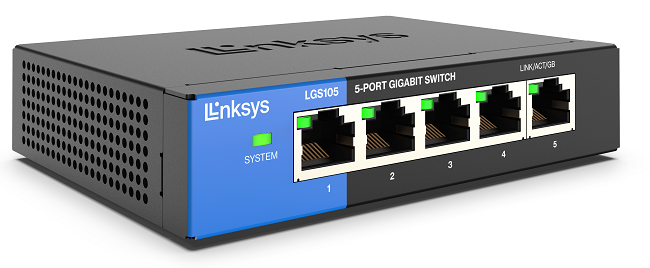
The Linksys LGS105 5-Port Business Desktop Gigabit Switch is an unmanaged switch that offers a quick and easy solution to extend your office network with a plug-and-play installation.
PRODUCT INFORMATION
You can connect the following devices to the Linksys LGS105:
- Computers
- Routers
- Switches
- Network printers
- Other network devices
Gigabit switches can minimize transfer times and allow you to stream high-bandwidth files to connected devices without interference.
The Linksys LGS105 is compliant with IEEE 802.3, 802.3u, 802.3x, 802.3ab, and 802.3az standards.
The Linksys LGS105 box contains the following:
- One Linksys LGS105
- Power adapter
No, the switch does not have this capability. Only routers or modems with DHCP capabilities can allow sharing of internet connection between computers. However, a switch can allow more computers to connect to a local network. For the computers to have internet access, the switch should be connected to a router or a modem.
Yes, the Linksys LGS105 can be wall mounted.
The Linksys LGS105 v1 and v2 have a 5-year warranty.
Yes, the switch has a QoS feature. However, the Linksys LGS105 is not a manageable switch; therefore, the QoS setting is predefined and can't be configured or customized.
TROUBLESHOOTING
Make sure that the network cabling is crimped securely and installed properly.
Follow the steps provided below to resolve this issue:
1. Verify if the switch and the computer are connected properly and the indicator lights on the switch are properly lit as outlined below:
- System light (blue) - Lights up solid when the switch is powered up
- Link/Act/GB (green/yellow) - Lights up solid on the corresponding port when a connection is detected and flashes if the connection is active
Learn more about the indicator lights on the switch.
2. Power down everything then power up the switch then do the same to the computer.
NOTE: Only routers or modems with DHCP capabilities can allow sharing of internet connection between computers. For a computer on a switch to have internet access, the switch should be connected to a router or a modem.


